How to use hyperlink in ppt

summary

  1. Select the text, shape, or picture that you want to use as a hyperlink.
  2. Select Insert > Hyperlink.
  3. Select Existing File or Web Page, and add the:
    • Text to display: Type the text that you want to appear as hyperlink.
    • ScreenTip: Type the text that you want to appear when the user hovers over the hyperlink (optional).
    • Current FolderBrowsed Pages, or Recent Files: Select where you want to link to.
    • Address: If you haven’t already selected a location above, insert the URL for the web site you want to link to.If you link to a file on your computer, and move your PowerPoint presentation to another computer, you’ll also need to move any linked files.
    • 4. Select OK.

Make sure to test the hyperlinks you’ve made

Example of powerpoint with hyperlink:

Video tutorial:

Creating an effective Presentation

6 simple steps

Minimize

keep slide count to a minimum to maintain a clear message and to keep the audience attentive.

Clarity

Avoid being fancy by using font style that is easy to read. Make sure it is readable for your audience be it size and font style.

Simplicity

use bullets or short sentences

Visuals

use graphic to help in your presentation.

Consistency

Make your design uniform

Contrast

Use light font on dark background and vice versa.

Powerpoint made fun!

microsoft powerpoint

tips for easy use
powerpoint example

Powepoint can be used for an effective presentation 🙂

It allows you to catch your audience’s attention using visual effects. PowerPoint is also highly recommended for speakers that may find presentations stressful. It can help overcome the fear of public speaking by making the audience focus on the PowerPoint rather than the presenter.

A few Do’s and Dont’s of presenting a powerpoint

Do’s

  • Stay concise
  • use humor
  • look up!
  • be bold and direct
  • save handout for the end
  • use bullets and nembered lists

Dont,s

  • overdo the special effects
  • just read the slides
  • rush
  • over rely on clipart

Video for effective powerpoint

3 simple excel functions you can use

Make life easier

There is no better time to start than now

Average function

The syntax foe the function is =AVERAGE( cells involved)

then click enter and you will have the average of the cells included

Countif function

Use COUNTIF, one of the statistical functions, to count the number of cells that meet a criterion; for example, to count the number of times a particular city appears in a customer list.

In its simplest form, COUNTIF says:

  • =COUNTIF(Where do you want to look?, What do you want to look for?)

For example:

  • =COUNTIF(A2:A5,”London”)
  • =COUNTIF(A2:A5,A4)

Averageif function

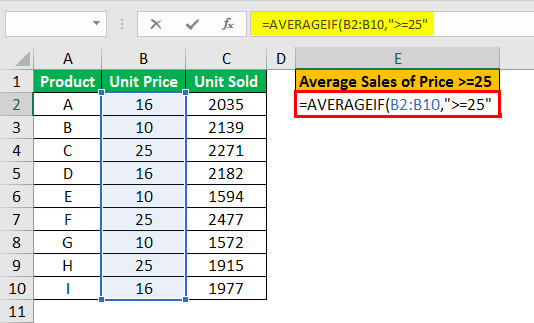
Syntax =AVERAGEIF (range, criteria, [average_range])Arguments 

  • range – One or more cells, including numbers or names, arrays, or references.
  • criteria – A number, expression, cell reference, or text.
  • average_range – [optional] The cells to average. When omitted, range is used.

The Excel AVERAGEIF function calculates the average of numbers in a range that meet supplied criteria. AVERAGEIF criteria can include logical operators (>,<,<>,=)

Other functions not mentioned (video)

Why excel is useful!

“learn and share”

-Anna kim

Why is excel important?

MS Excel is a spreadsheet program developed by Microsoft in 1985, with the sole purpose of helping businesses compile all their financial data, yearly credit, and yearly debit sheets. Fast forward to the future after 31 years, it is now the most commonly used program for creating graphs and pivot tables.

Excel is a fantastic tool for students. Students can learn how to convert raw data into useful knowledge by utilizing Excel. They will learn how to perform calculations faster by conducting activities in Excel. They will gain an understanding of how data can be visualized by utilizing Excel. They will learn how to plan their finances. Data and information are vital to filters, and students may understand why.

They will learn in Excel why tracking goal progressions, calculating salaries, and other essential things they will face and use in the future are important things they will face and use, but if they practice on such things using Microsoft Excel earlier in their careers, it will be easier for them to handle a large amount of data in the future.

Videos with tips to help you! 🙂

How to do a simple Mail merge

mail merge summary

Empowerment technology

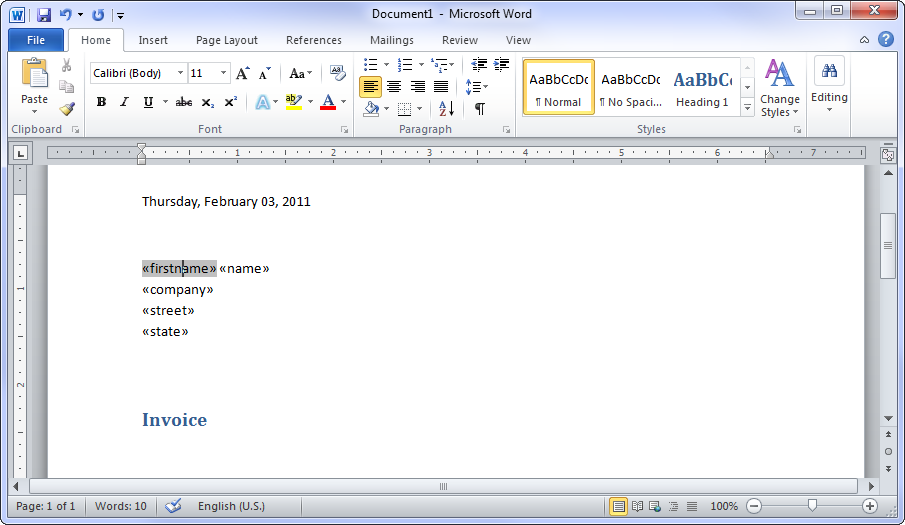
Step 1: Create a document in ms word

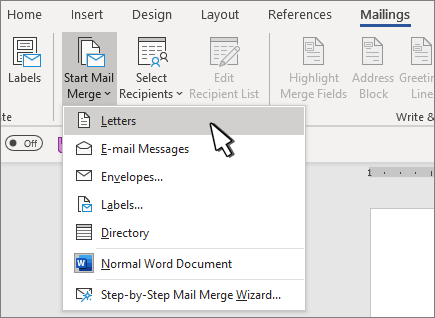
Go to the mailings tab, click start mail merge and choose letter option

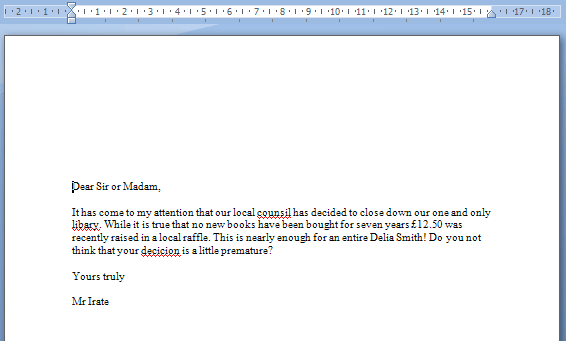
Step 2: Type the content of your letter that is common for each product to be made. note:its the contents that does not change for each copy

Step 3: Make sure to save your letter

Step 4: Add the fields you need for your letter (name, company, address, etc.)

Step 5: create the list / data file

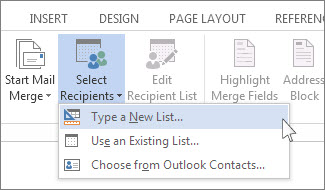
on the mailings tab ,go to start mail merge and click select recipients then insert or type a new list. If you want modification click customize columns.

to Add the field you need in your document just click add

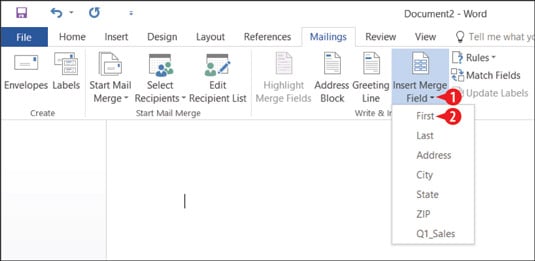
After inserting and modifying the contents of your letter including the fields click the insert merge field adjust to your liking. Then save your document

Last step: click finish mail merge, send to email address to edit, print or send to emails

you could also preview the results or product of your work.

Video guides for mail merge

Easy way to use word

make things easier

What is word good for?
The purpose of the MS Word is to allow the users to type and save documents. … Microsoft word is used to save documents. The documents can be copied to flash drive which serves as an external memory for your computer. This allows you to use the saved documents conveniently taking with you anywhere.

scientific american

As a student we often use microsoft for projects and activities and that includes the word feature of microsoft Microsoft is useful in todays life MS word is same as some notes in the notebook .MS word is an important education application. It is important to process raw facts into meaningful information. MS word can benefits teachers,business and students to create new innovative methods of learning and teaching. MS word and MS office suite for students help to transmit educational materials and practice systematically in school and university faster with higher quality.

So here are 10 tips you could do !

  • Copy, paste, and cut with keyboard shortcuts.
  • Quickly zoom in or out to save eye strain.
  • Delete entire words at a time.
  • Use Smart Lookup to search the Internet
  • Remove unwanted formatting
  • Tell the program exactly what you want to do.
  • Use multiple clicks to select chunks of copy
  • Quickly insert links into a document.
  • Select the default font you want, not the default font Word wants you to use.
  • Find any word you want quickly and easily

Here are a few videos that demonstrates